
Built for the day itself,
worked out per role.
Every feature below started at a real competition: because someone along the course missed something, or the central post didn't know something. Pick a role, or just keep scrolling.
A result in two taps,
straight to the central post.
The fence judge app is made for volunteers who use it one day a year: big buttons, high contrast and nothing that doesn't need to be there. Everything a fence judge enters reaches the central post within seconds.
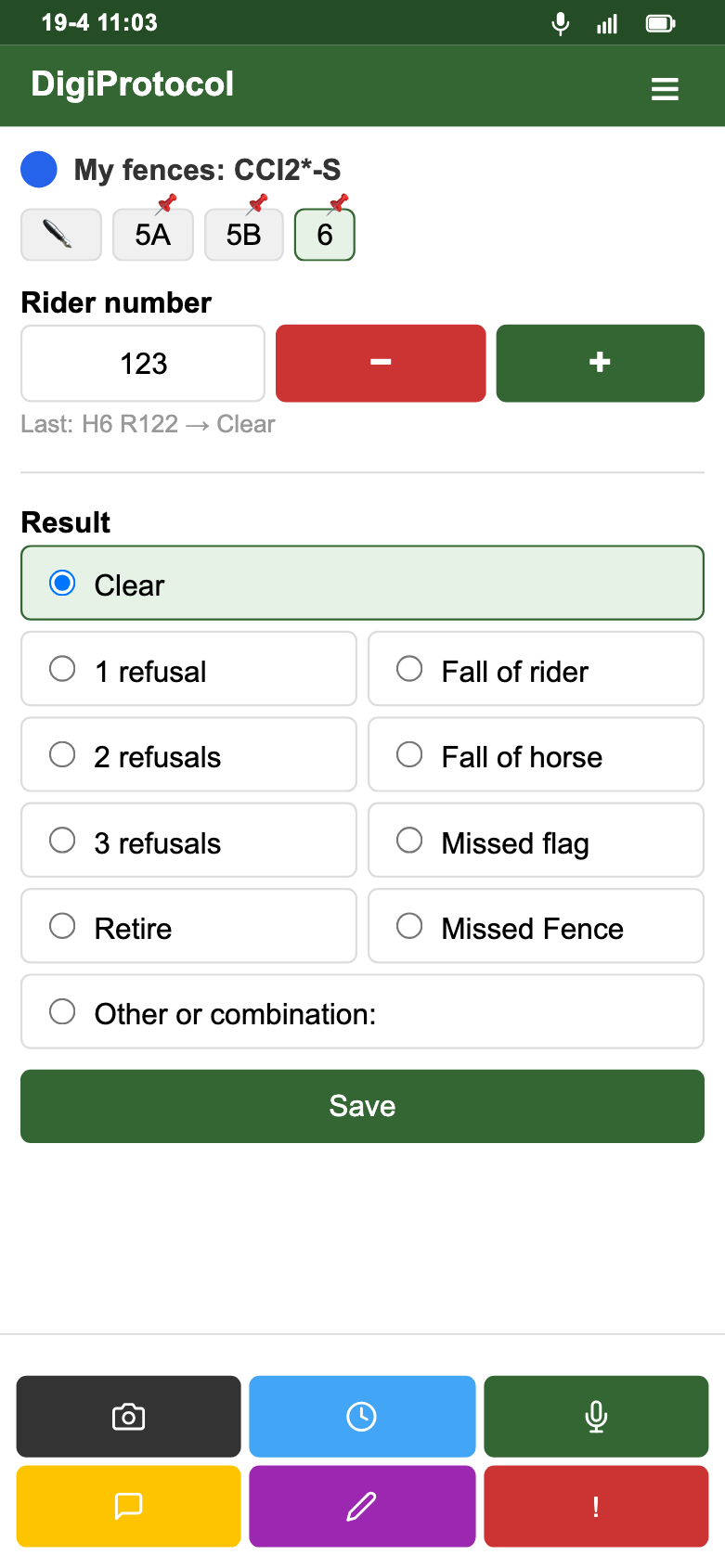
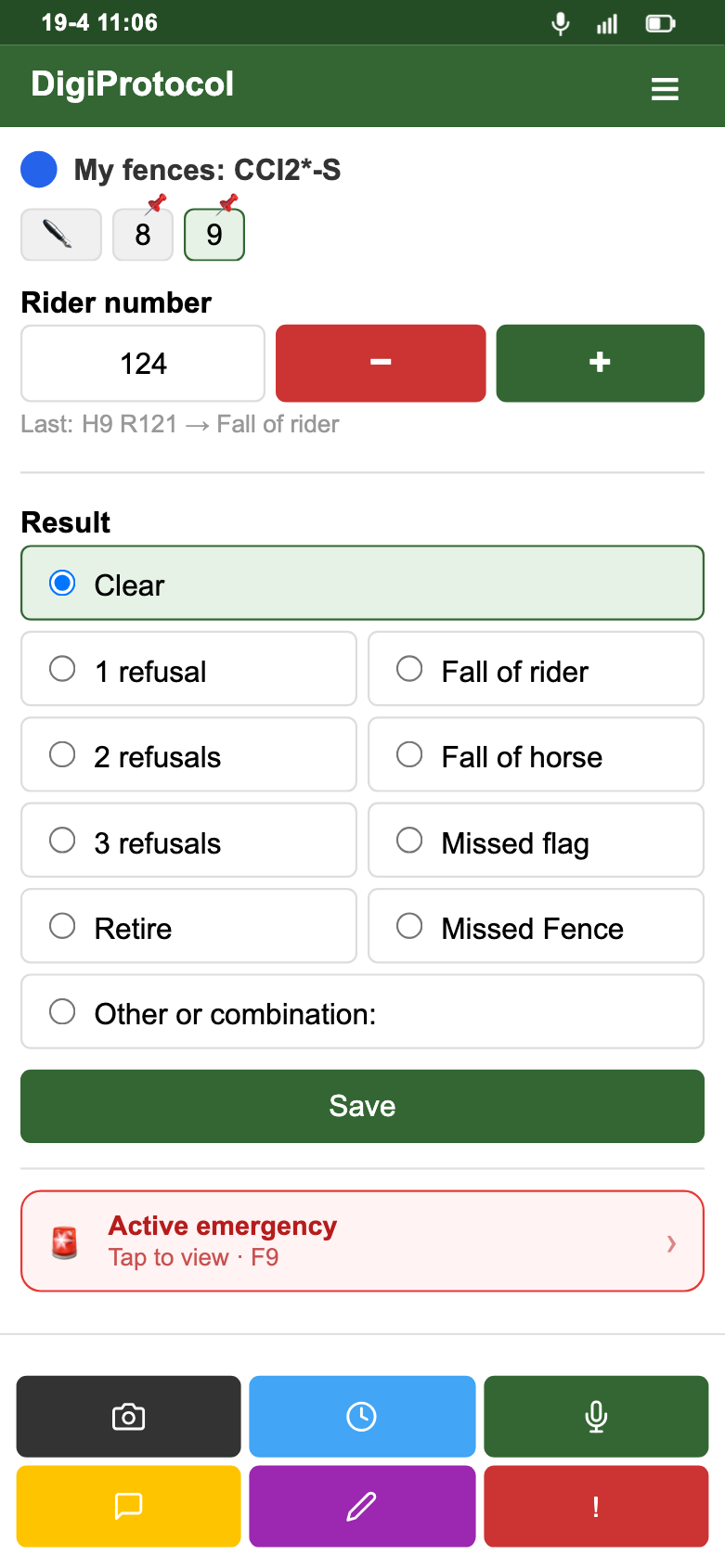
The main screen
- My fences. The fence judge picks their fences per class. The coloured dot is the colour of the fence signs the rider number belongs to, and if a number belongs to another class, the app warns.
- Rider number with + and –, or type it in. The last saved result is shown underneath as a check.
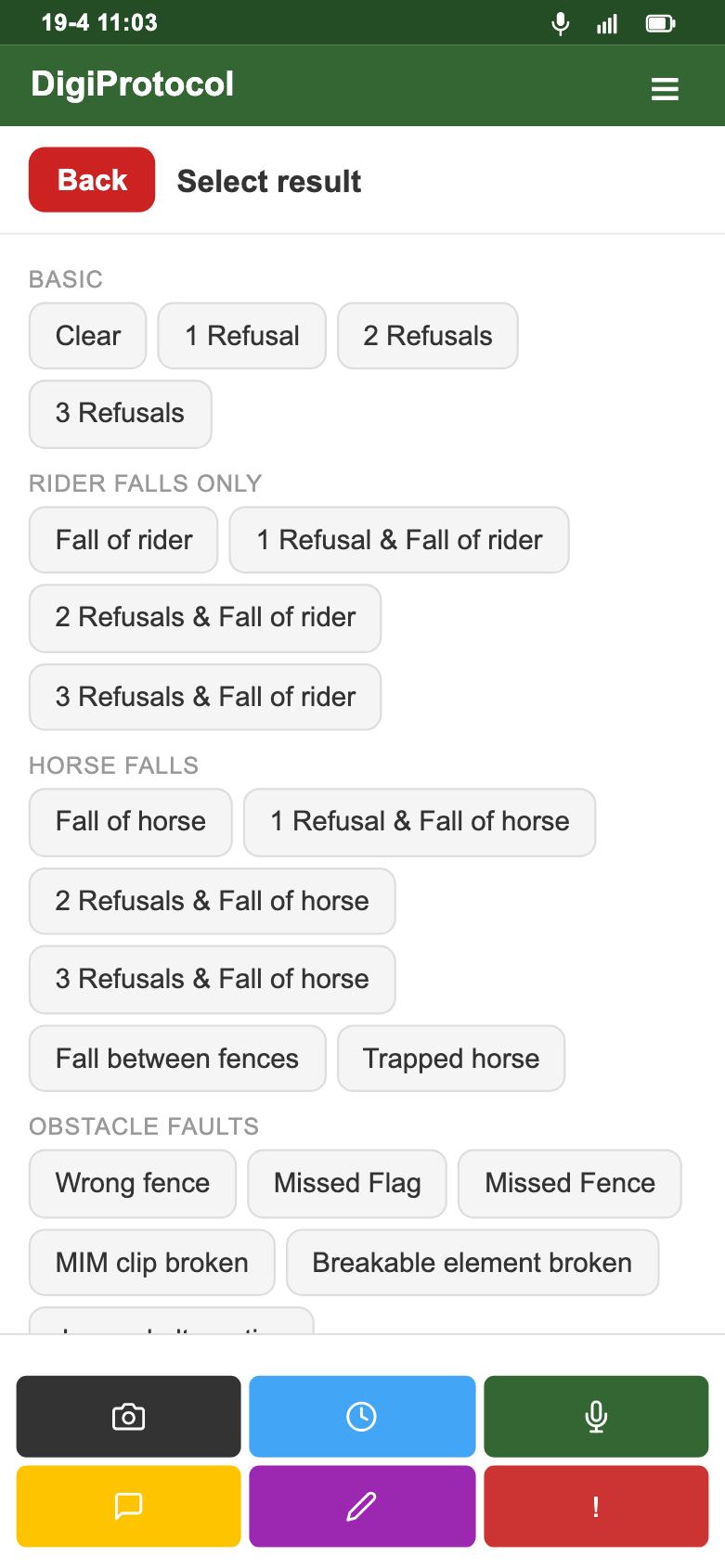
- Result list with the most common results right at hand, and many more options and combinations behind the “Other or combination” button.
- Nothing happens by accident. You save with a swipe across the screen. Is there already a result, or was the rider already eliminated? The app says so first.
- Sub-fences (7A, 7B…) in one go, or the same result for several fences in the list.
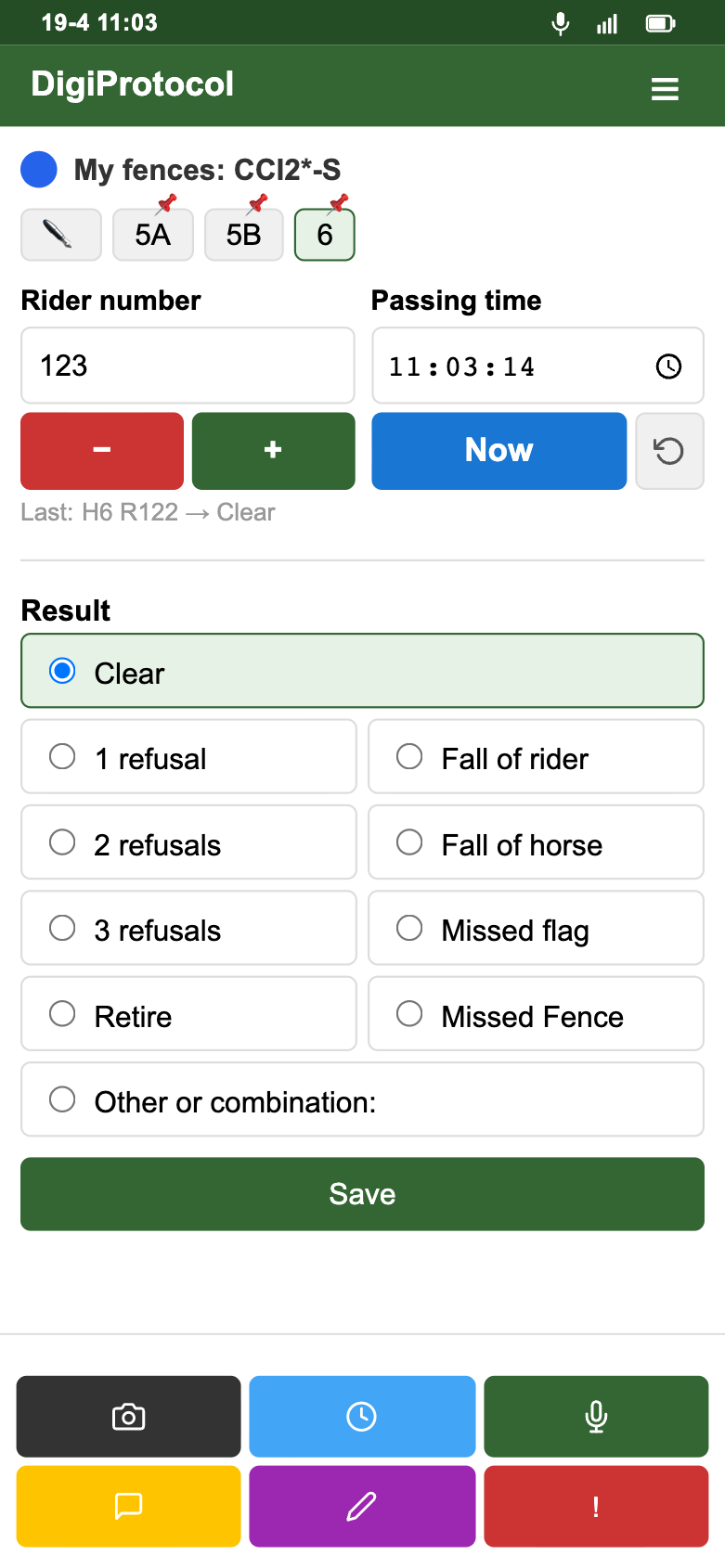
With Timesaver: the passing time too
If you work with Timesaver, the main screen changes. Next to the rider number there is a passing time: with one tap on Now the fence judge records when the rider passes the fence. That time goes along with the result.
- One tap at the moment the rider passes; it can be adjusted too.
- Same screen, same buttons: volunteers don't have to learn anything new.
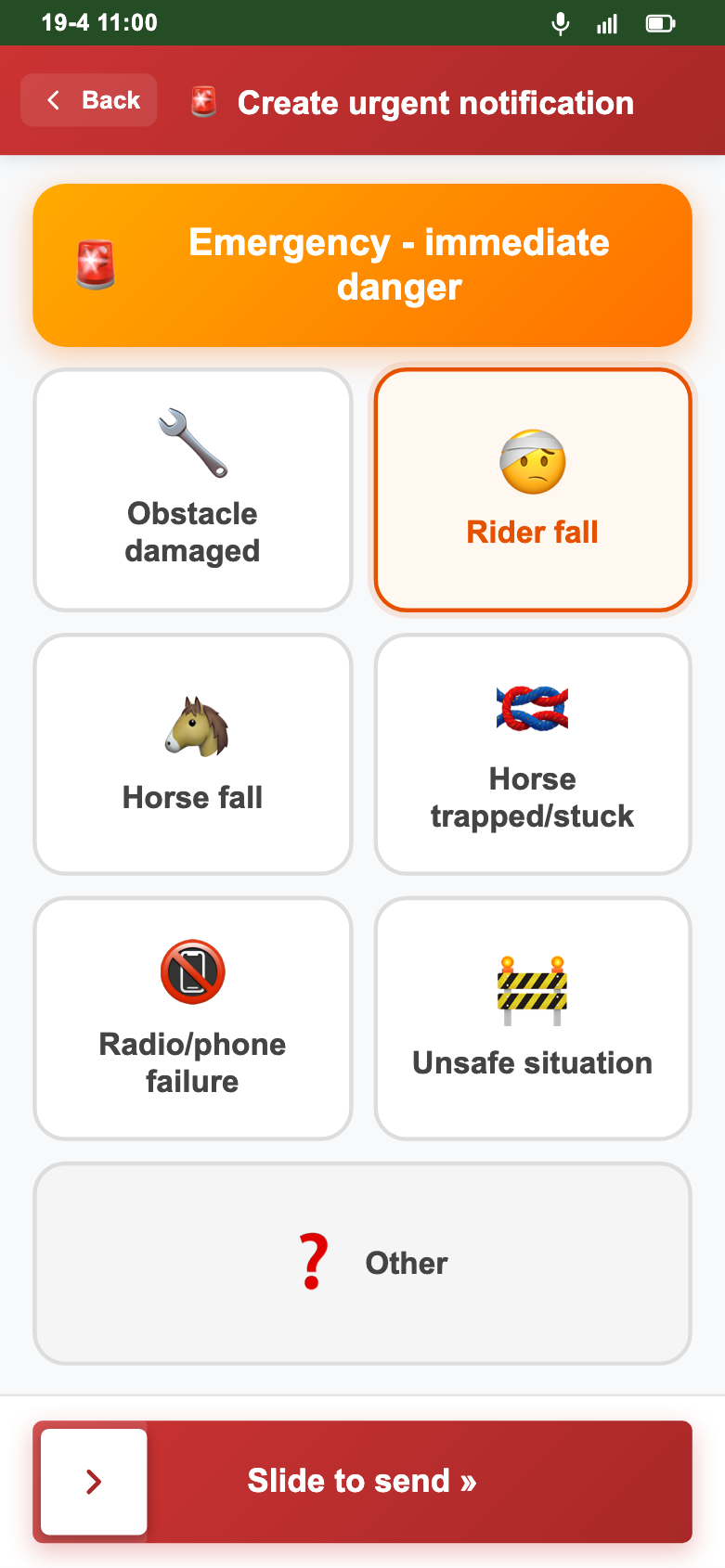
Report an emergency without having to think
In a panic you forget a fence number, or the radio message comes out unclear. So the fence judge only chooses who needs to come; the app adds the fence number and GPS position itself.
- Big coloured buttons for each service: vet, first aid, ambulance, construction crew, coordinator. With an urgent switch.
- A bar at the bottom stays until the emergency is closed, showing who is on the way or on site.
- After a fall the app asks whether a fall report is needed for that rider.
Course on hold? Every fence judge knows.
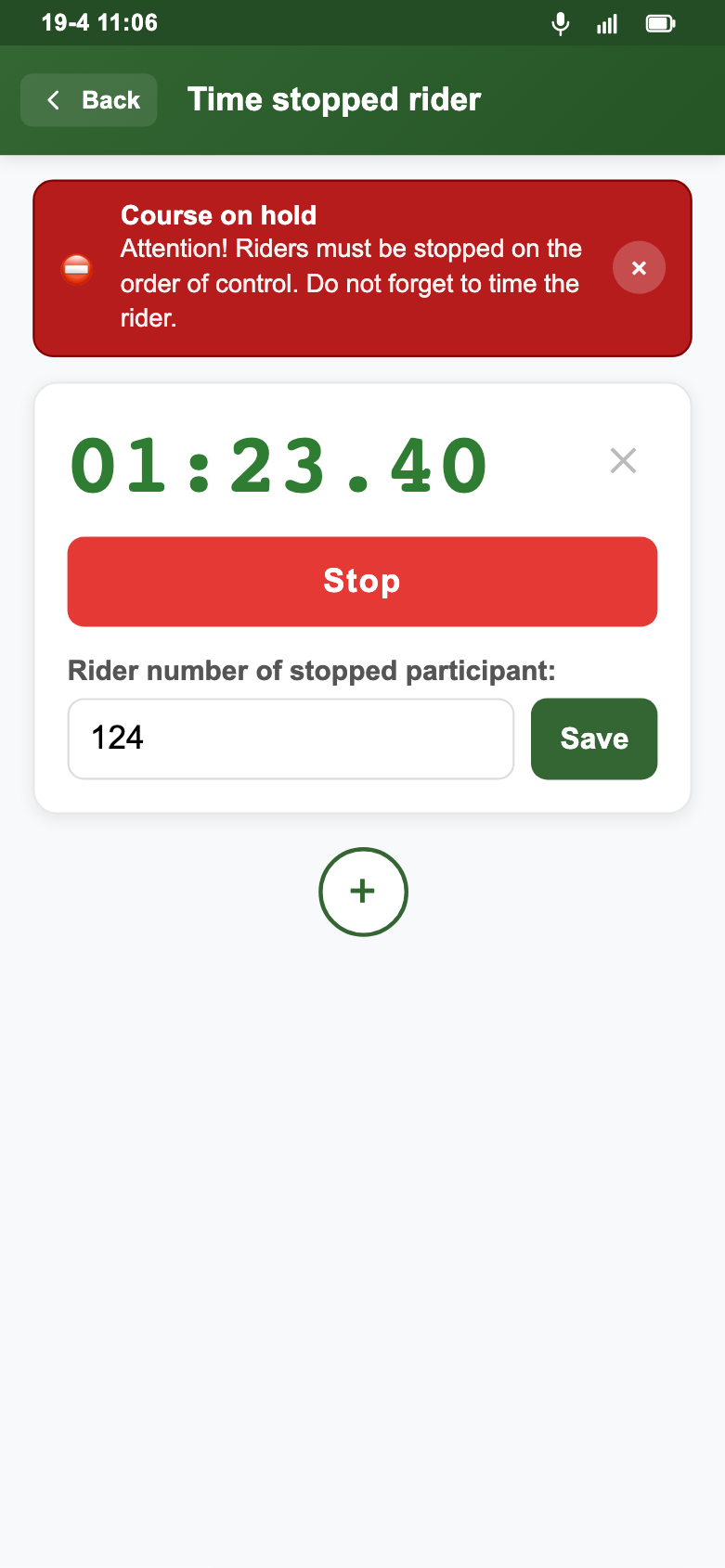
When the central post holds the course, or only the start, every device gets a banner telling the fence judge what to do. For a rider who is stopped, the stopwatch starts by itself; the stop time goes to the show office.
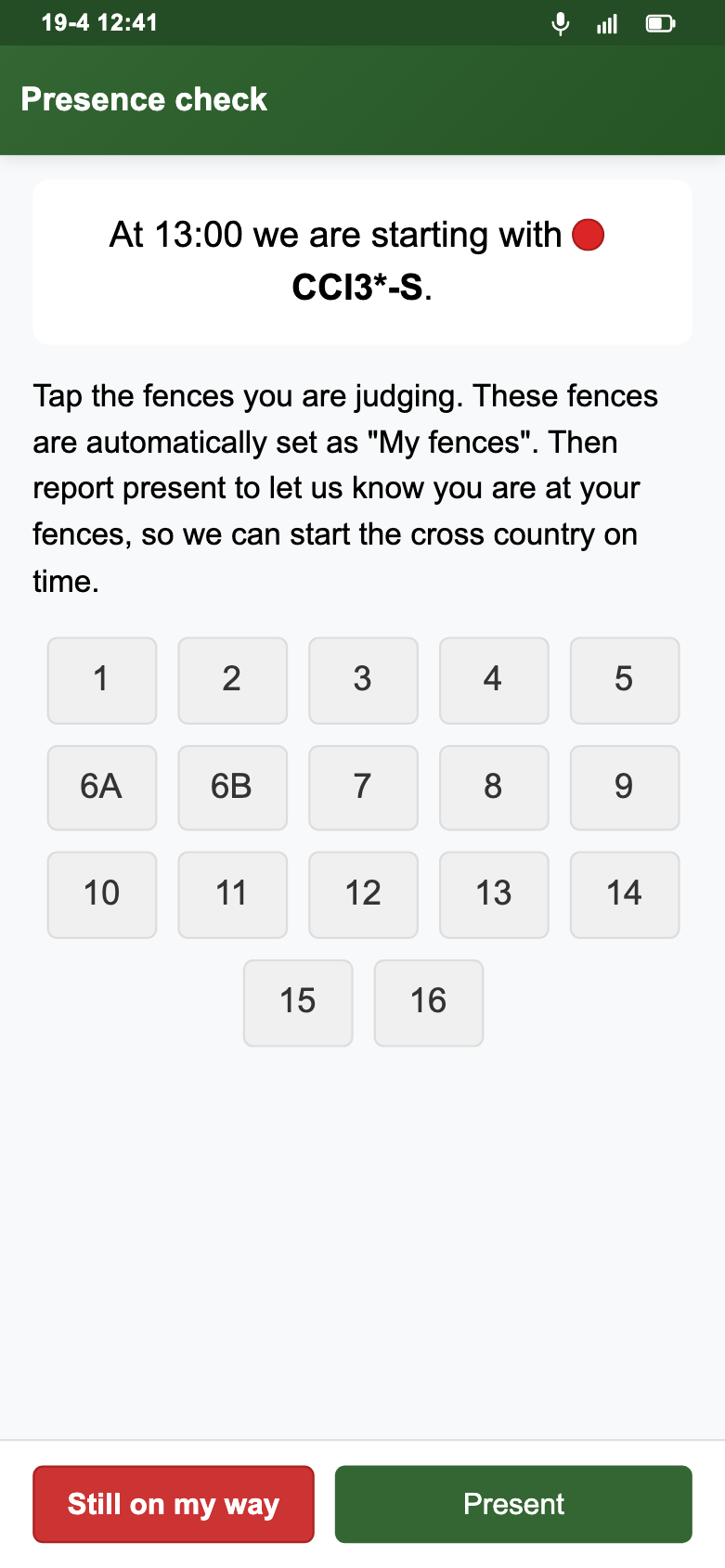
- Attendance check before a class starts: “At 11:20 we start the M class.” The fence judge ticks their fences and reports present or still on the way.
- Whistle signal as soon as a chosen earlier fence enters a result: a rider is coming.
- Ask for help from an official, the organisation, IT or the construction crew, with a banner once someone is on the way.
Comments, with a sketch
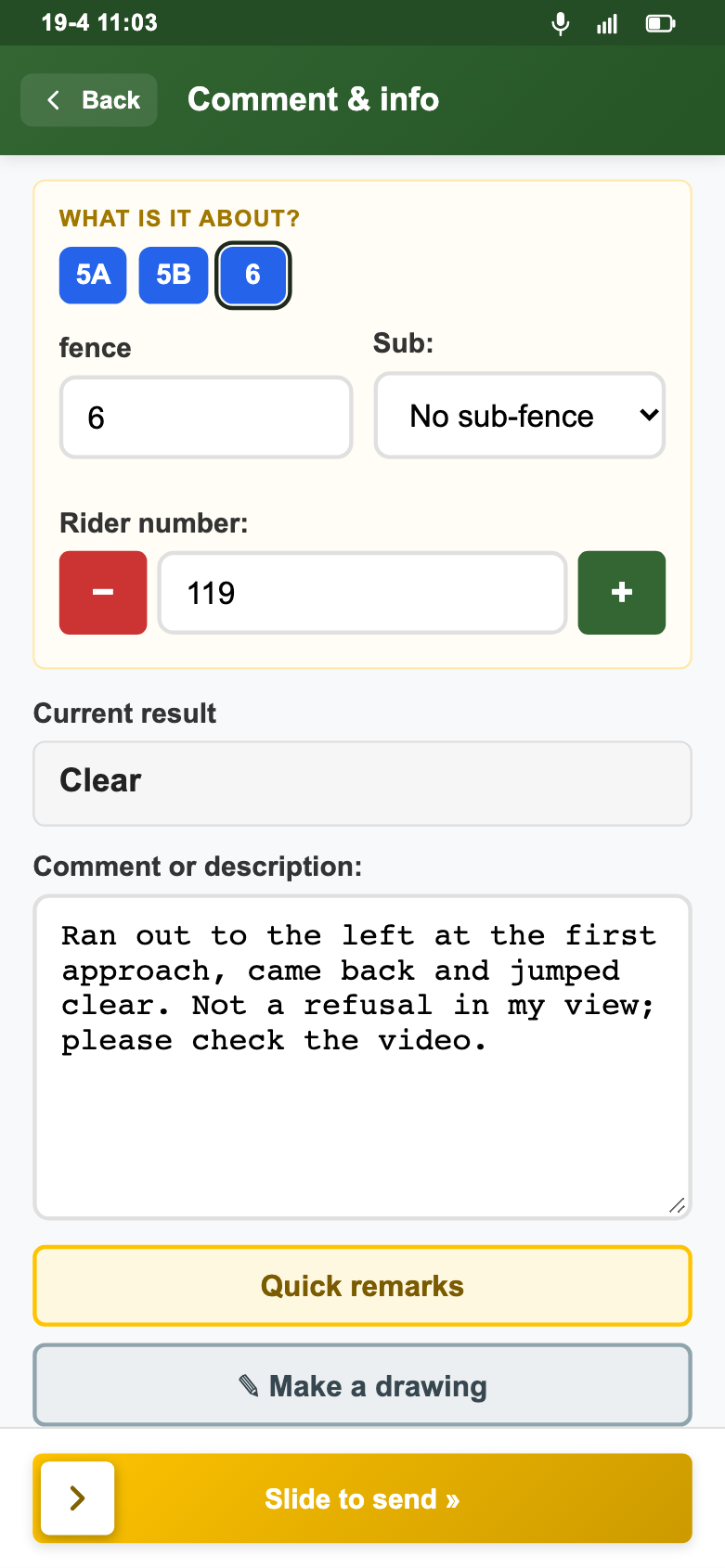
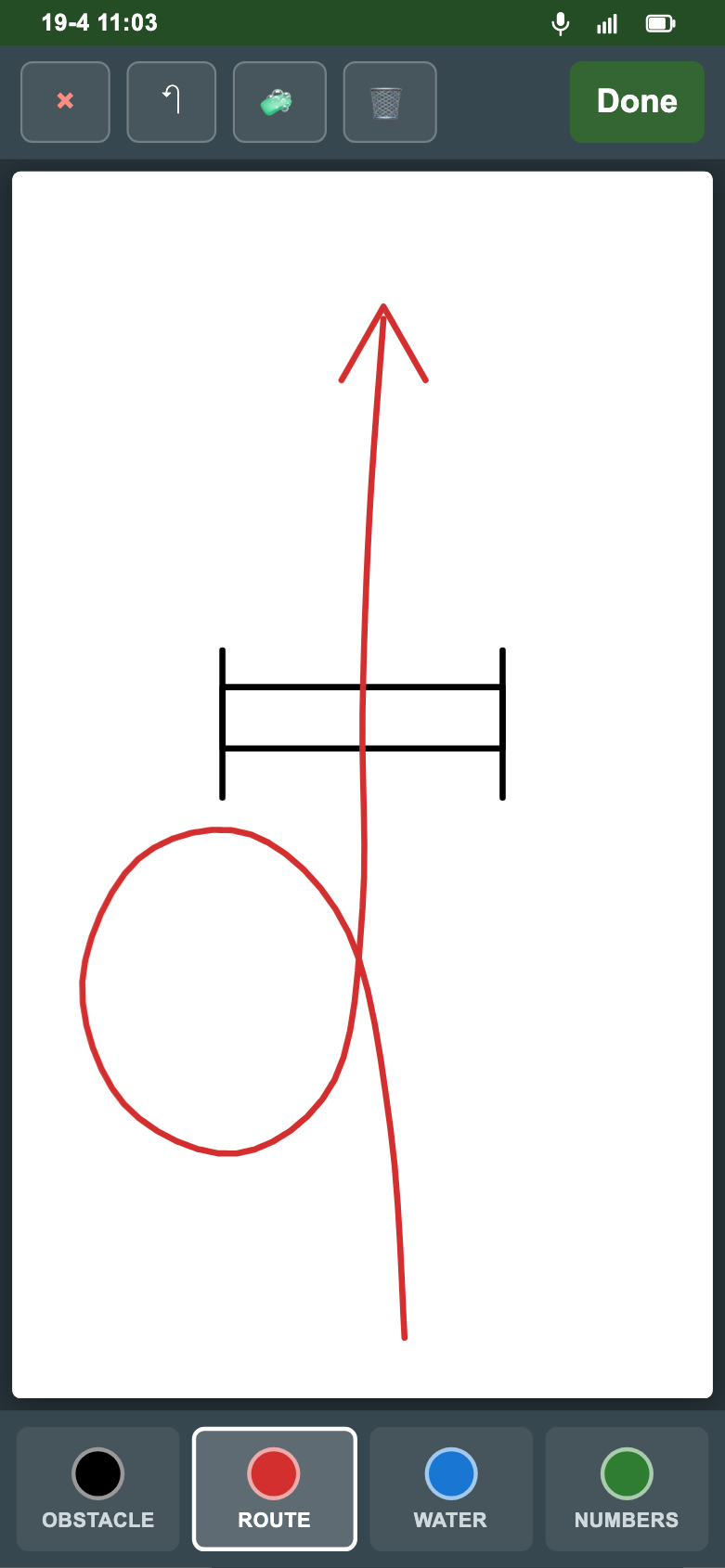
Not everything fits in a result. With the yellow button the fence judge records what they saw, picks the fences it is about and, if needed, draws the situation. The show office can reply; the answer appears as a notification on the device.
- Quick remarks such as excessive use of the whip, blood seen, lost shoe or hindered by the public.
- A sketch of the situation, drawn with a finger.
- Change request with the purple button: new result plus a reason. The fence judge sees whether it was approved.
Camera: in doubt? Film it.
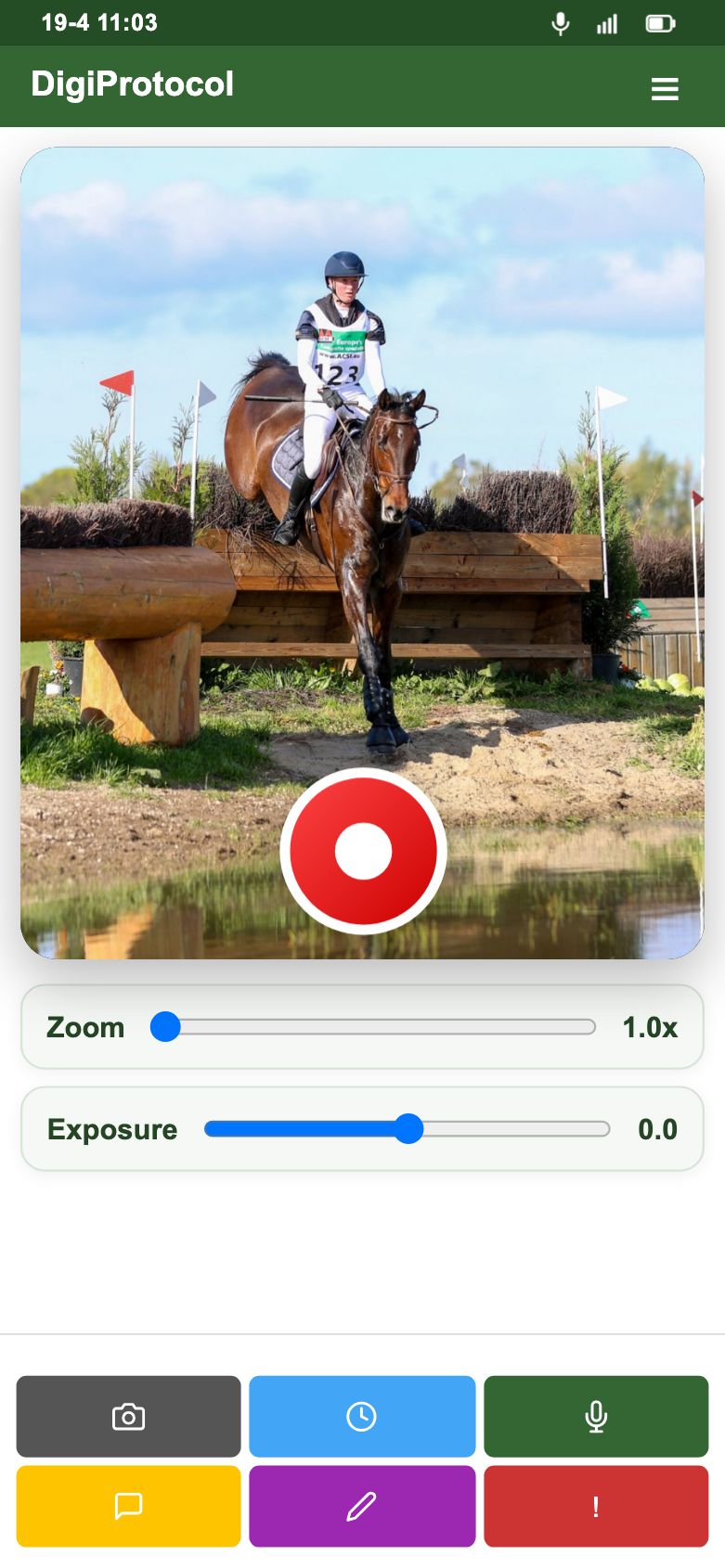
With the camera button the fence judge films a jump. The app then asks to confirm the fence and rider number, and the video goes straight to the show office and the central post. A difficult situation can be reviewed within a minute.
- Video at 720p, uploaded straight away.
- Nothing lost: a video that wasn't saved still ends up in the gallery and can be sent later.
- Video gallery in the show office, by fence and filtered by rider number.
Fall reports
The KNHS fall report and the FEI Eventing Fall Report, with the event details already filled in.
Works without coverage
Results wait on the device until there is a connection again, and the fence judge sees which ones still need sending.
Start list and results
The fence judge sees the start list, the results, their own history and the map.
Keep the overview
without calling around.
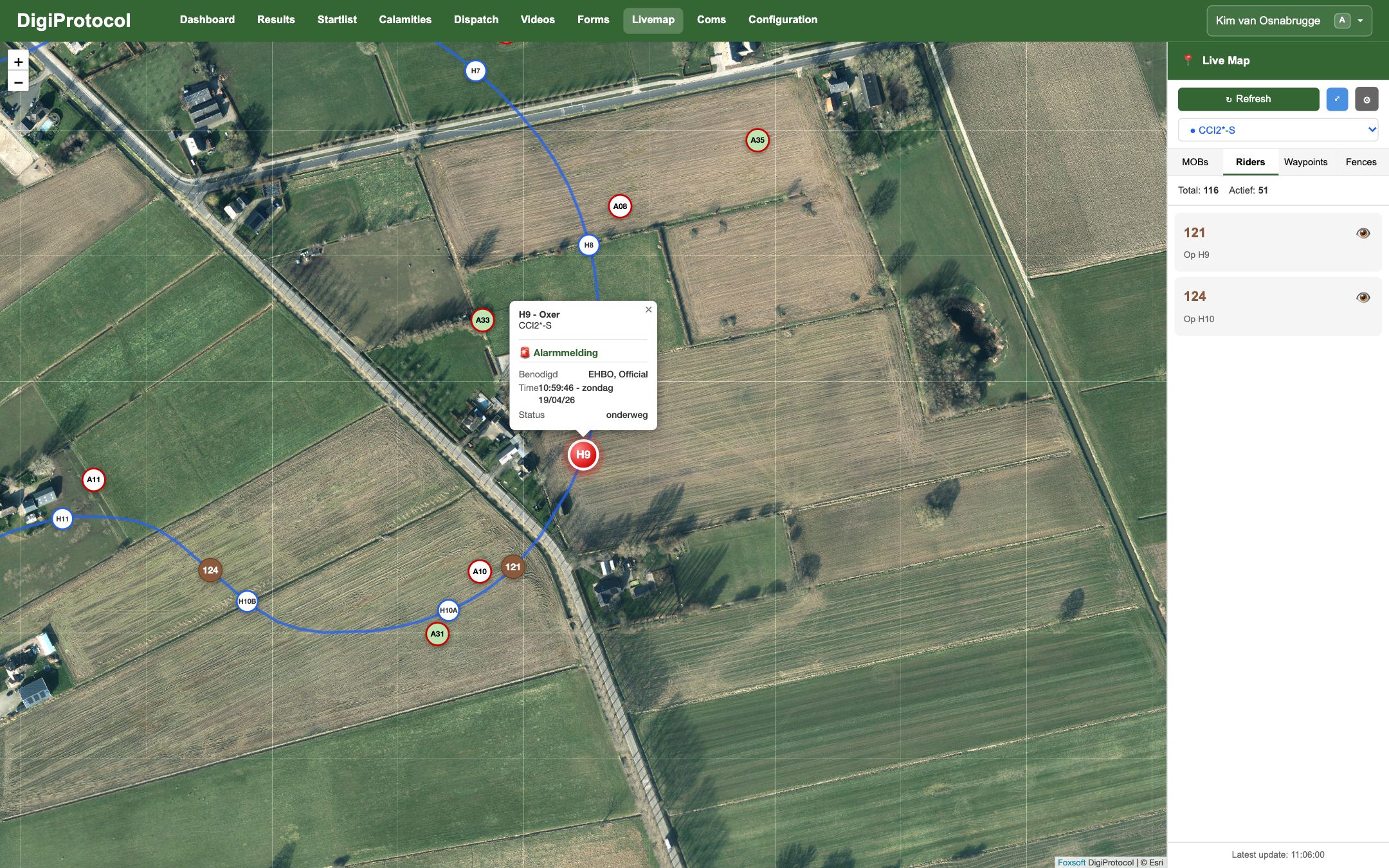
The central post sees what is happening on the course: where the riders are, where the fence judges are, who is on the way to an alert and how long the course has been on hold.
Live map
- The course from the CrossCountry App, with fences and route, loaded in a few seconds.
- Fence judges and responders at their GPS position, with the battery level of their device.
- Estimated position of every rider, worked out from the latest results.
- Nearest help for an alert at a glance.
Dispatch
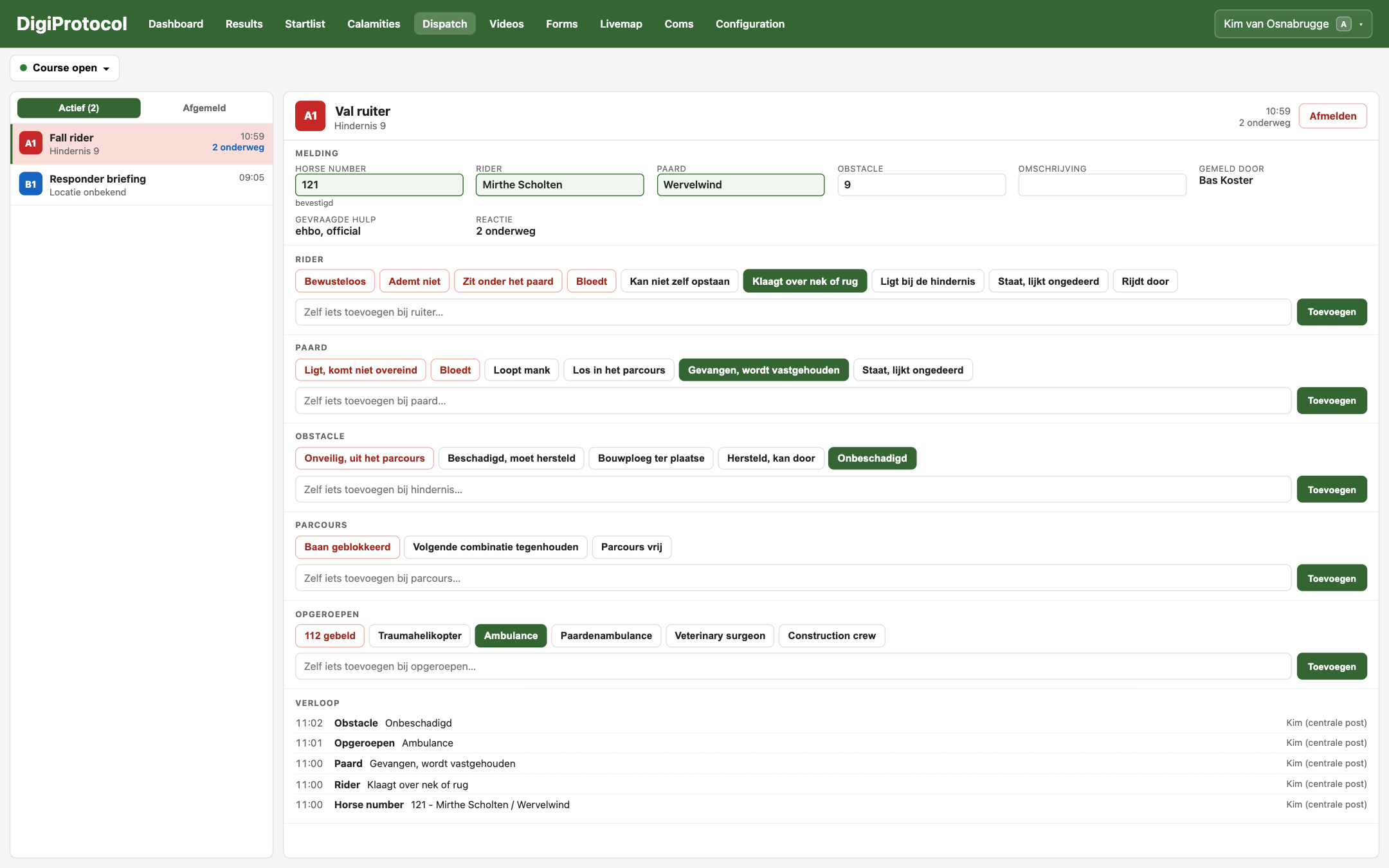
See exactly where an emergency is reported and which responders are nearby. An alert comes in with a beep; rider number, rider and horse are filled in, and the central post sees who is on the way or on site. The responders see the same status on their phones.
- Hold the course, hold only the start, or “course not ready yet”: one button, and every screen shows who did it.
- Holds are logged with their duration, so stop times add up afterwards.
The Rekenkeet Option
No suitable room on the grounds? The Rekenkeet is a complete scoring office and central post in one, which we fitted out together with Equipe. Three workstations, base radios on the wall, its own wifi and 4G, and a battery that lets it run up to 4 hours without power.
- Set it down wherever you need it, near the start and finish or in the middle of the grounds.
- Printer, charging points and a hand-out table outside for the phones and radios.
- Leave it to us: at smaller events we run the whole scoring office and central post for you from the Rekenkeet.

The results
build themselves.
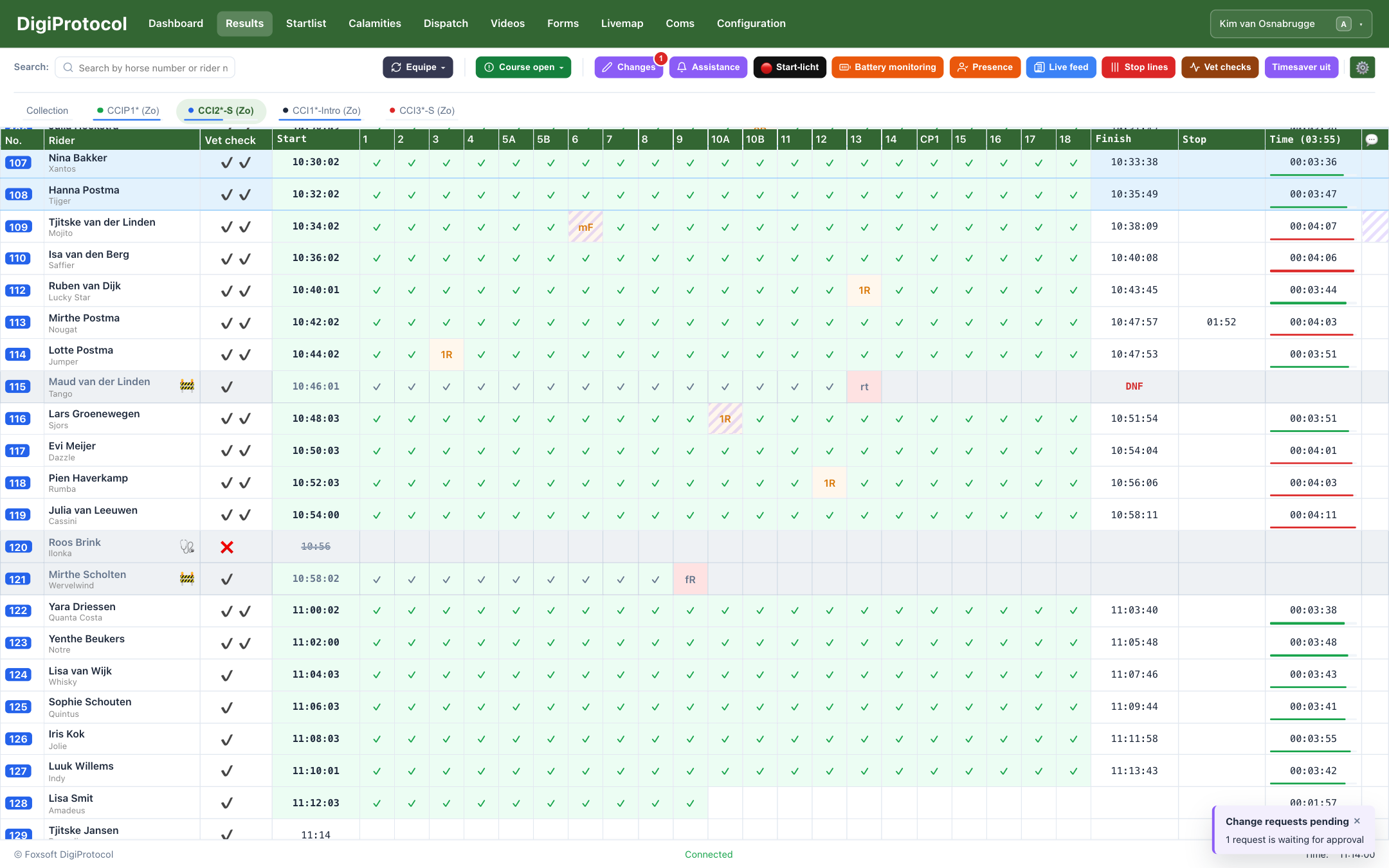
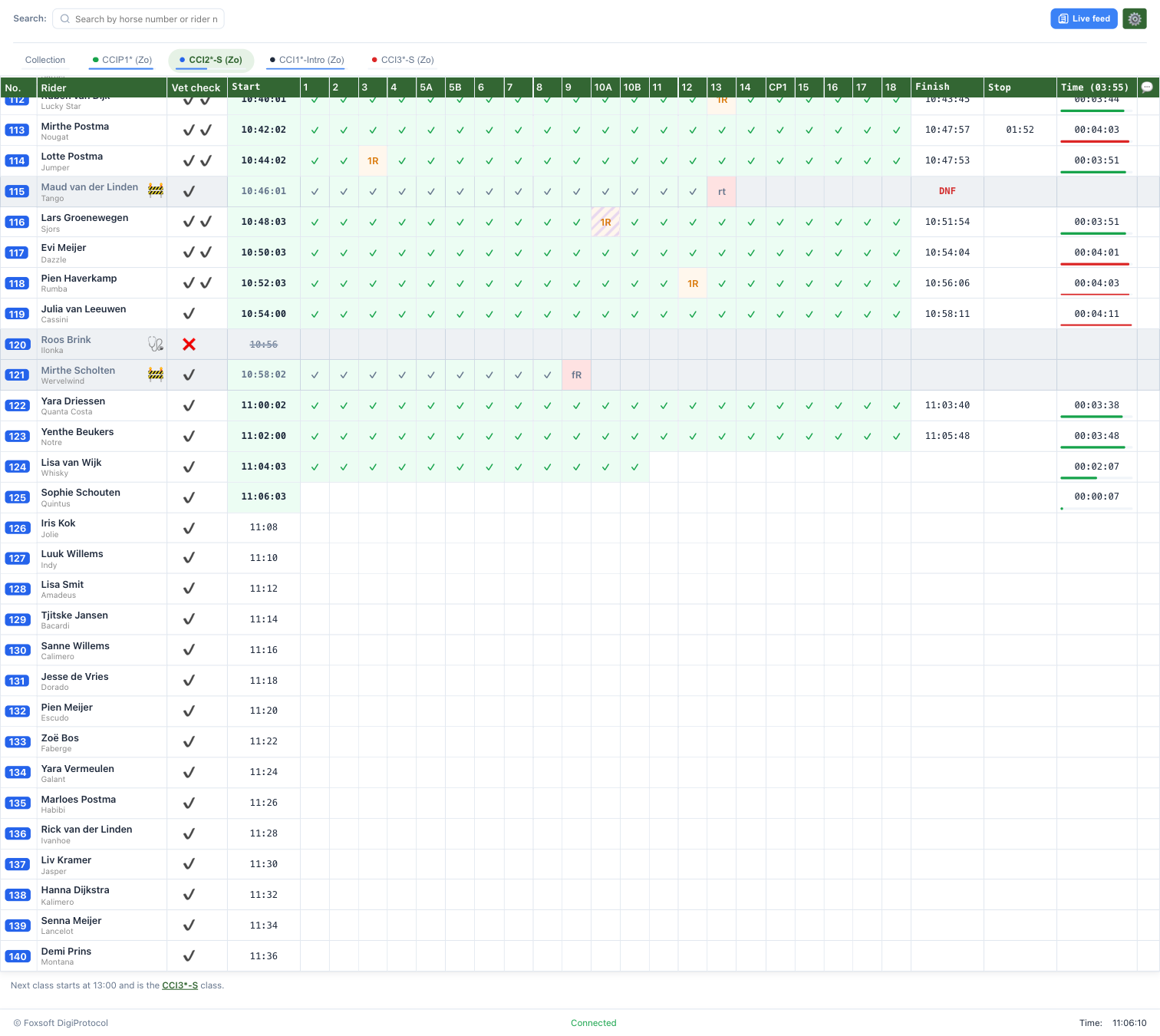
The show office sees every class live: per rider the vet check, start time, every fence result, finish time, stop time and riding time. Whatever the fence judges enter is there within seconds.
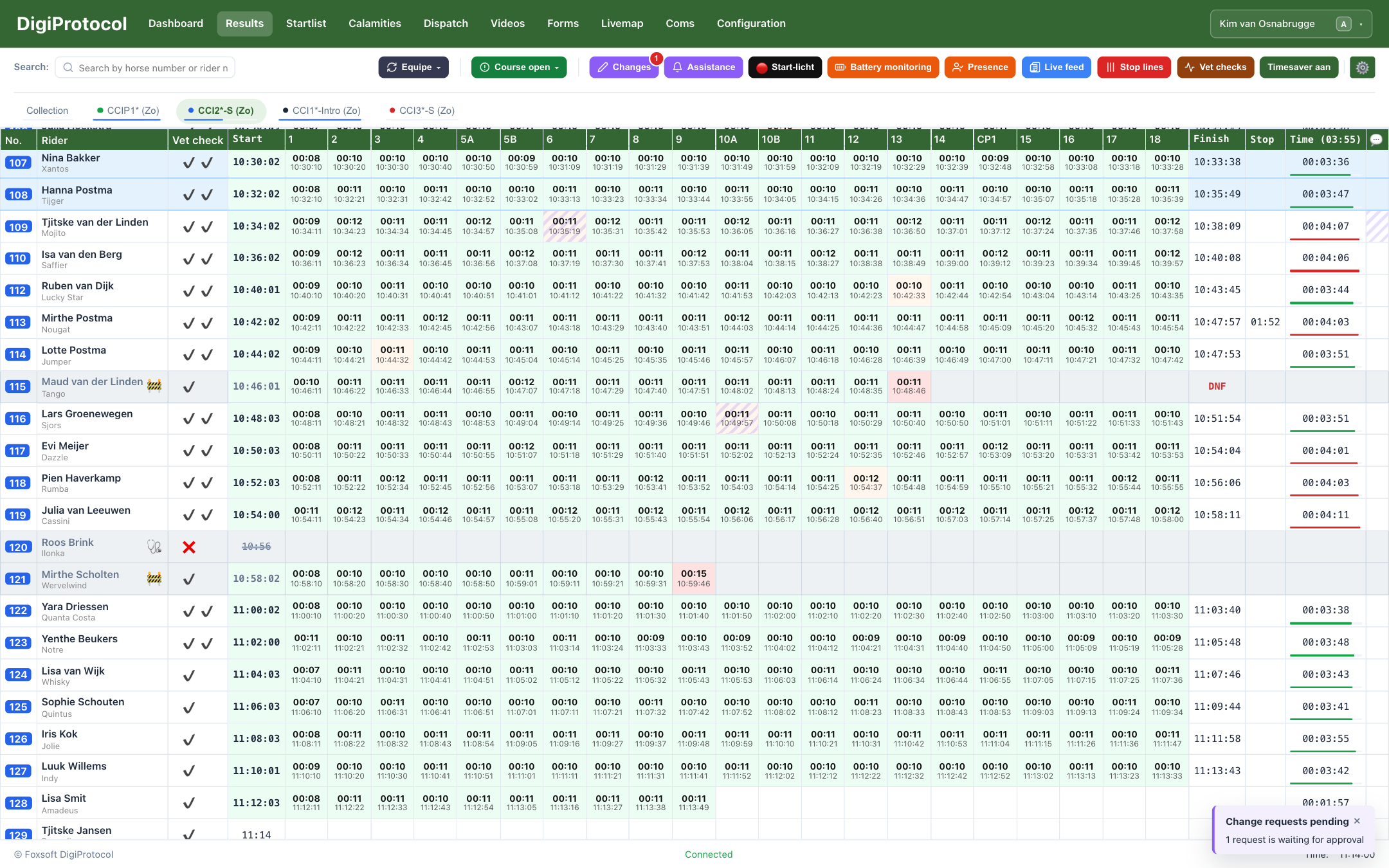
With Timesaver: every passing time
If you work with Timesaver, one button switches the results table. For each fence you see the time since the previous fence and the passing time, so you can check exactly where a rider lost time or was held.
Handling exceptions
Did not start, withdrawn, eliminated in dressage or show jumping, finish fault or DNF: straight from the results.
Change requests
Approve or reject requests from fence judges, with a reason. The fence judge sees the answer.
Comments and sketches
Read what the fence judges saw, look at their drawing and reply straight away.
Start lists
Import from Equipe, Excel or CSV. Drag the order, insert breaks, shift start times in one go, print on A4.
HC and refusals
Hors concours per rider or class; the number of refusals before elimination set per class.
Forms
Complete, print and close fall reports. Riding style protocols as PDF.
The commentator knows
first.
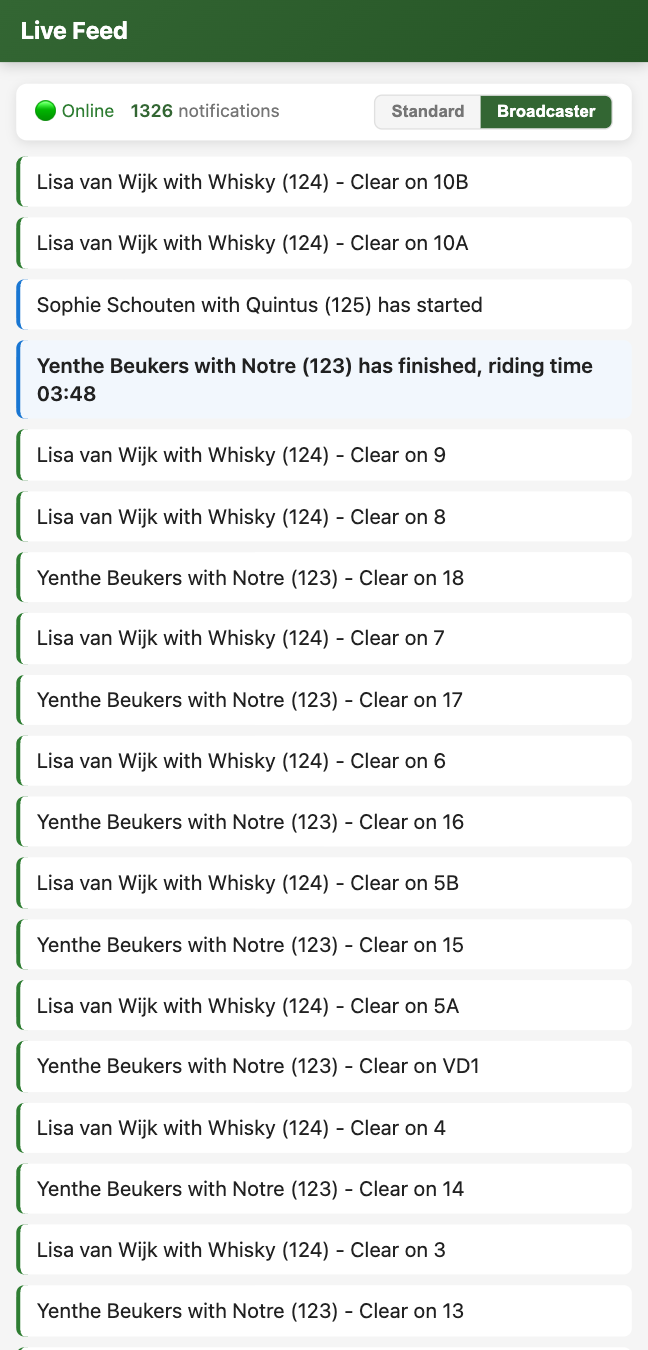
The announcer gets everything that happens on course in plain sentences: who starts, who goes clear over which fence, and who is home with which riding time. Next to the results on one screen, with a base radio on the table to hear everything.
Ready to read out
"Yenthe Beukers and Notre have finished, riding time 03:48." The announcer reads it out as it is.
Newest on top
Whatever happened last is always at the top. A fall or refusal stands out with its own colour.
Hear everything
With the base radio the announcer listens in on the organisation's channels.
Down to
the second.
One tap at the start or finish, and the riding time works itself out. If you use Timesaver, DigiProtocol integrates with it fully.
Start
- Live start list showing who isn't starting, is eliminated or hasn't been through the vet check yet.
- A warning when someone starts out of order.
- Update start times when the schedule shifts; the delay flows through the whole system.
Finish
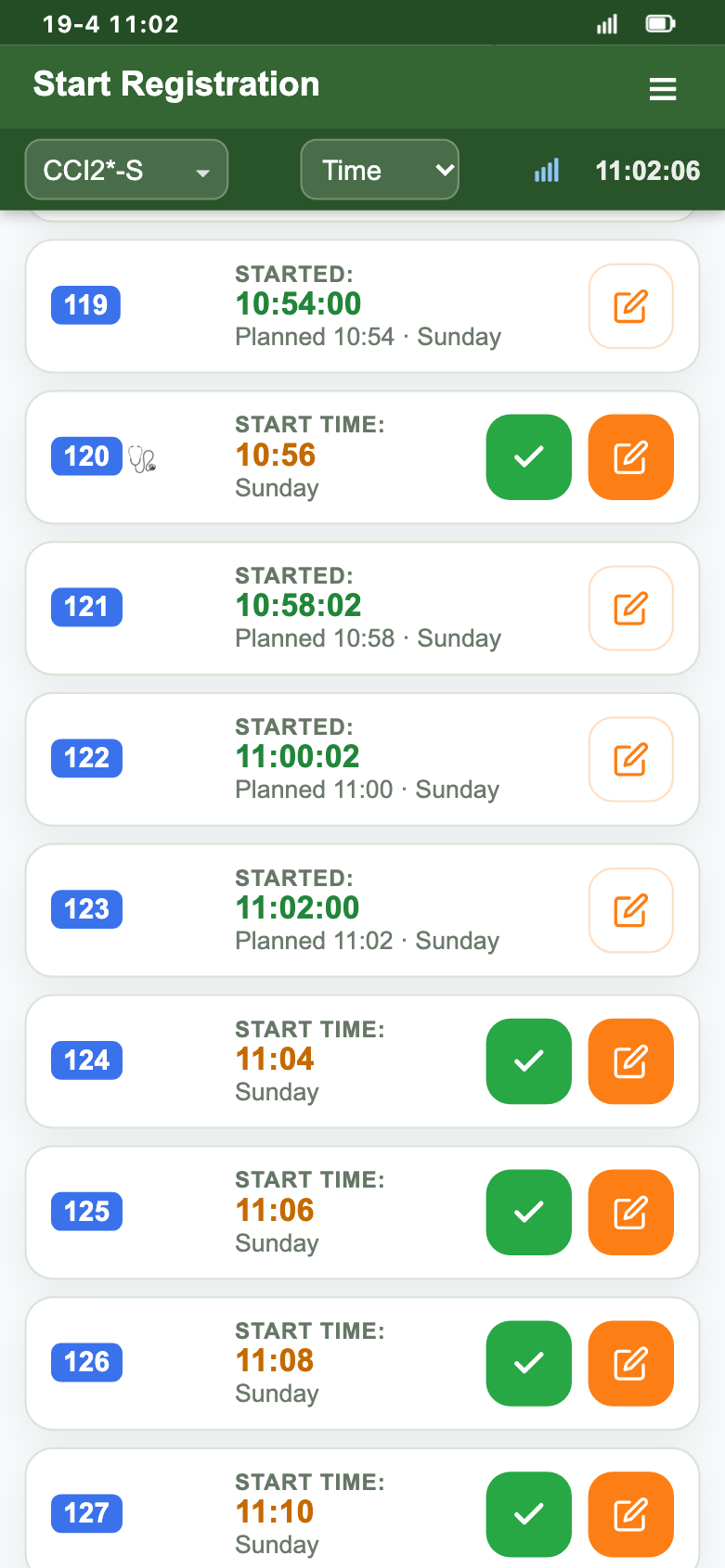
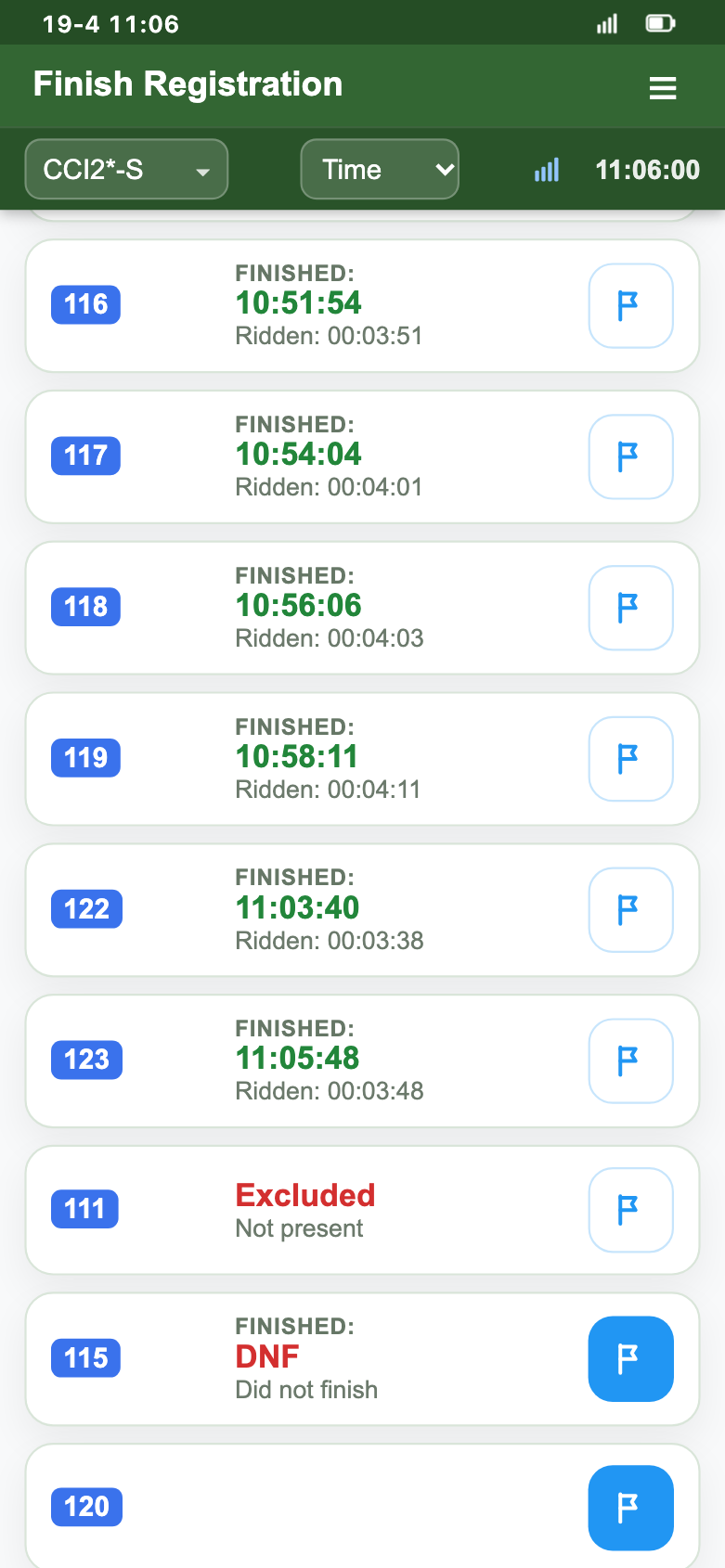
- Time pulses from the laser at the finish, measured to the millisecond, linked to the right rider number with one tap.
- Finish fault and DNF recorded on the spot.
- Status of everyone on course: who was eliminated out there, who is still coming.
Entering a finish
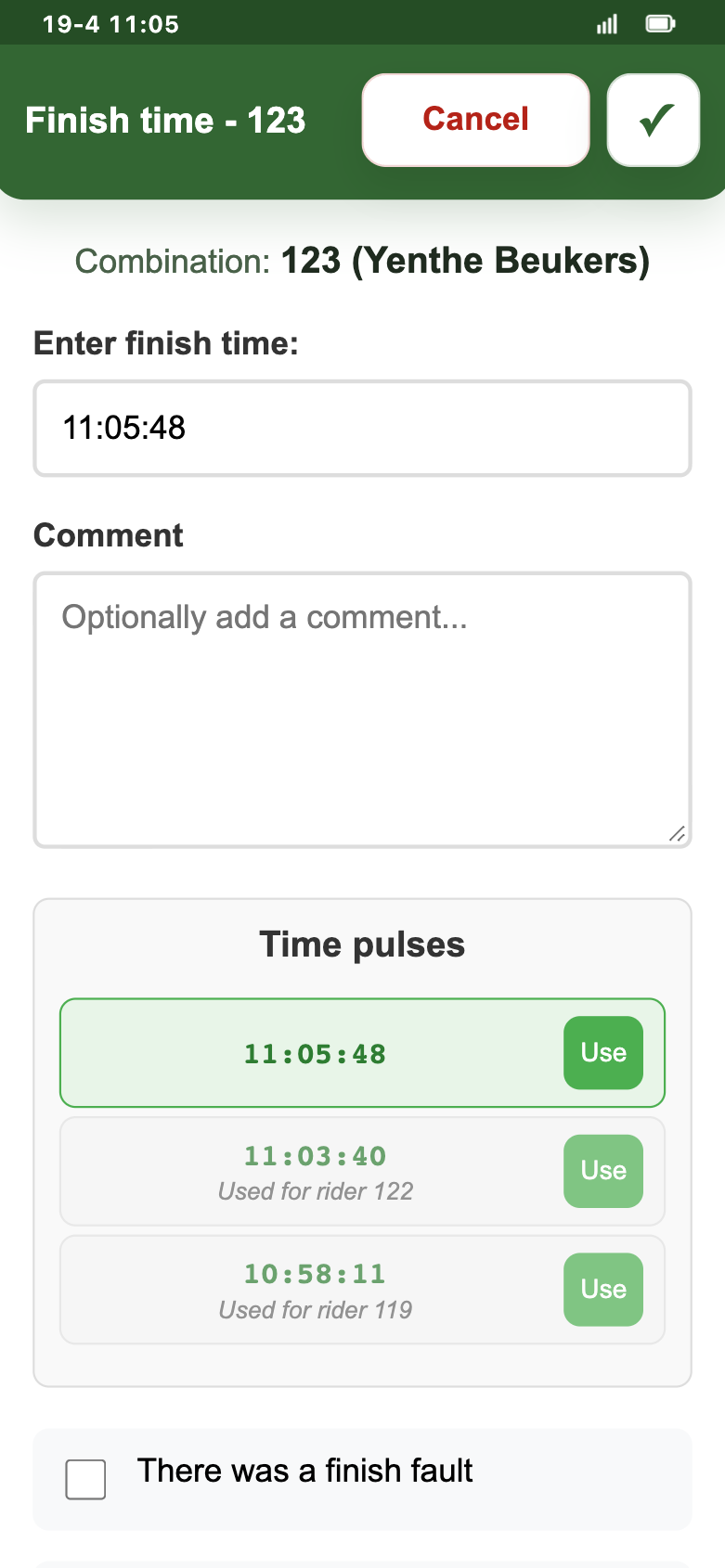
When a rider comes in, the finish steward opens the entry screen with one tap. The time is already filled in; it can be adjusted, and a finish fault or a rider who never reached the finish is recorded on the same screen.
- Rider number and name at the top, so you know exactly who you are entering.
- A comment for the show office.
The horse
comes first.
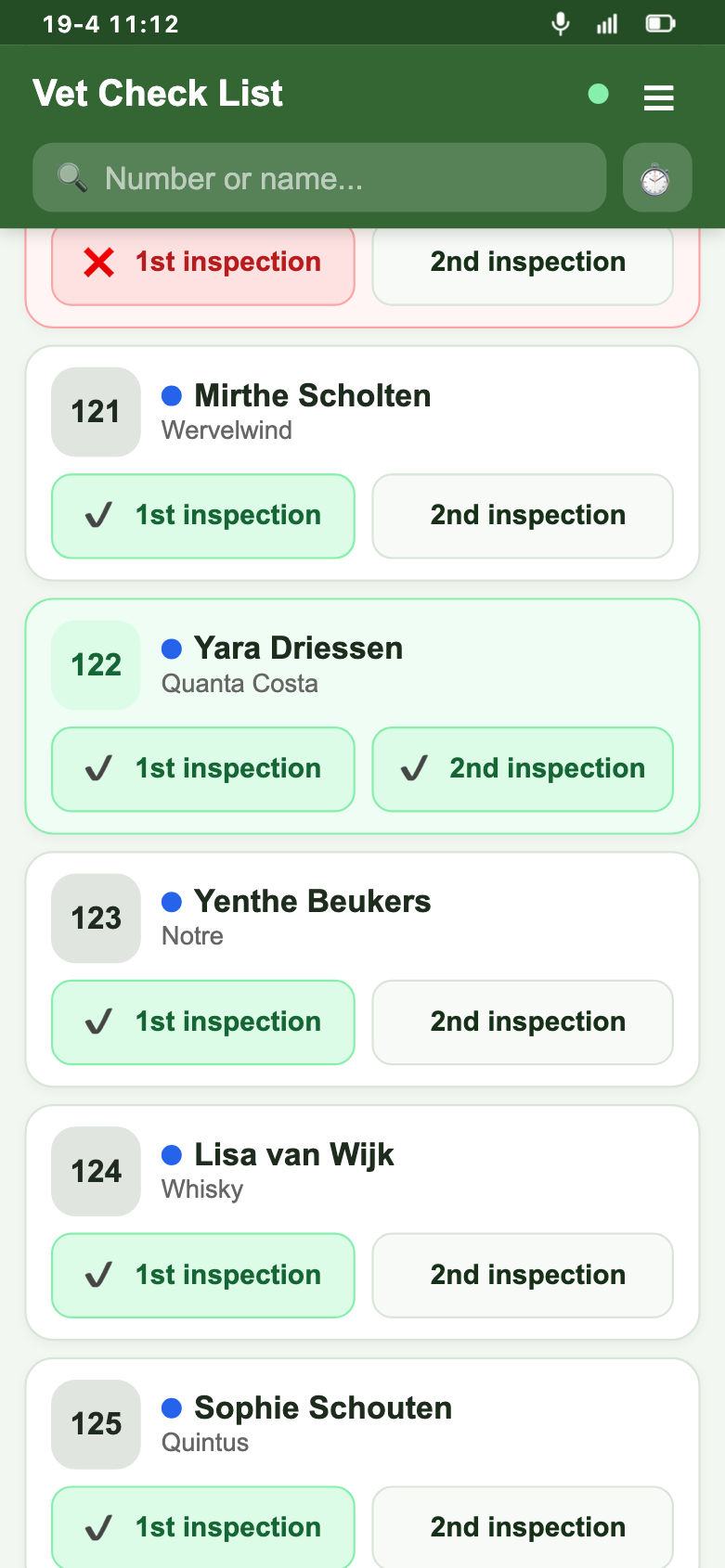
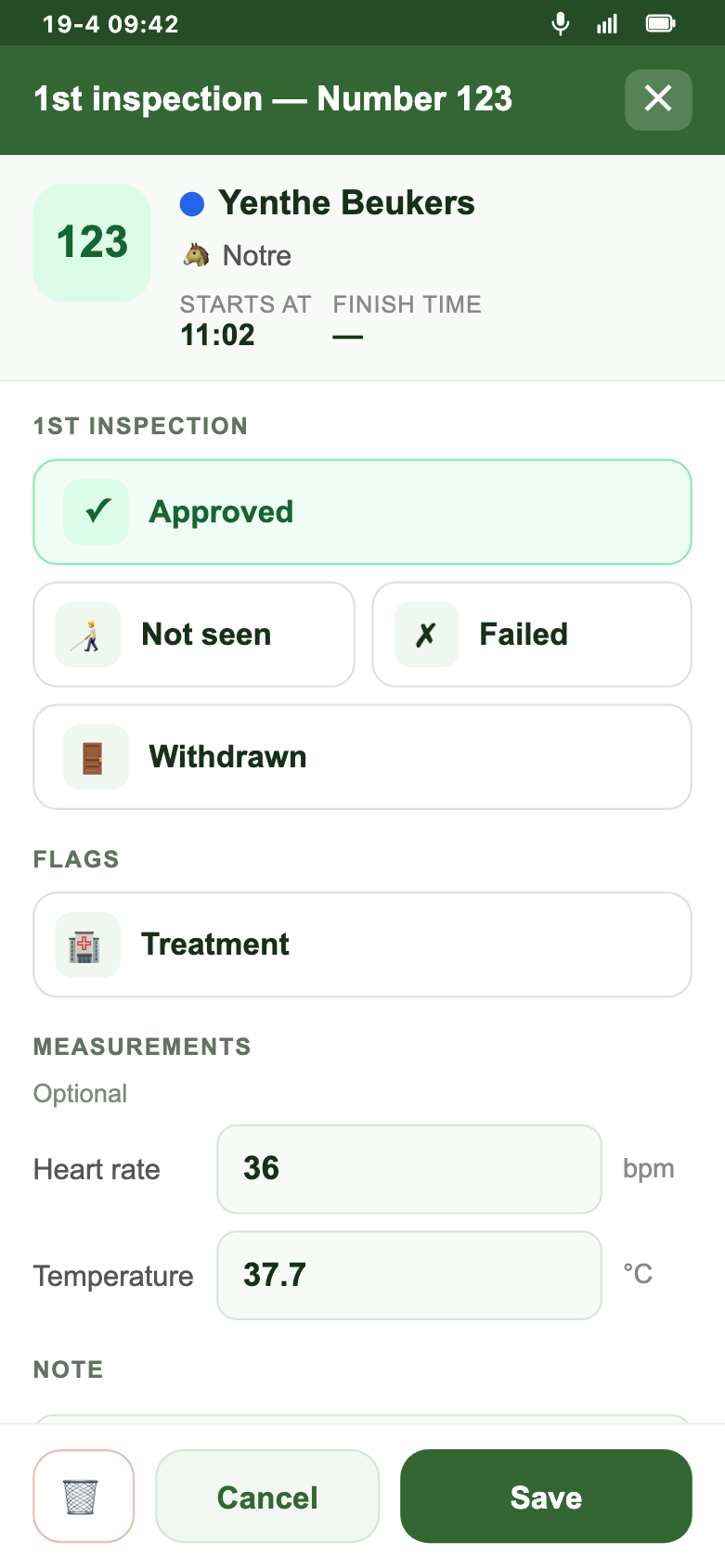
The vet records the first and second inspection at the vet check. A horse that fails shows up as excluded at the start, with the fence judges and in the show office straight away.
- Approved, re-inspection, failed or not seen, with heart rate, temperature and recovery time.
- A check on the first letter of the surname, so the right horse is inspected.
- Rider signature on the screen, required or optional.
- Late? After 20 minutes a rider is automatically marked as late, after 40 minutes as not reported.
- Labels for riders already eliminated or withdrawn, so the team knows who not to expect.
After a fall,
every second counts.
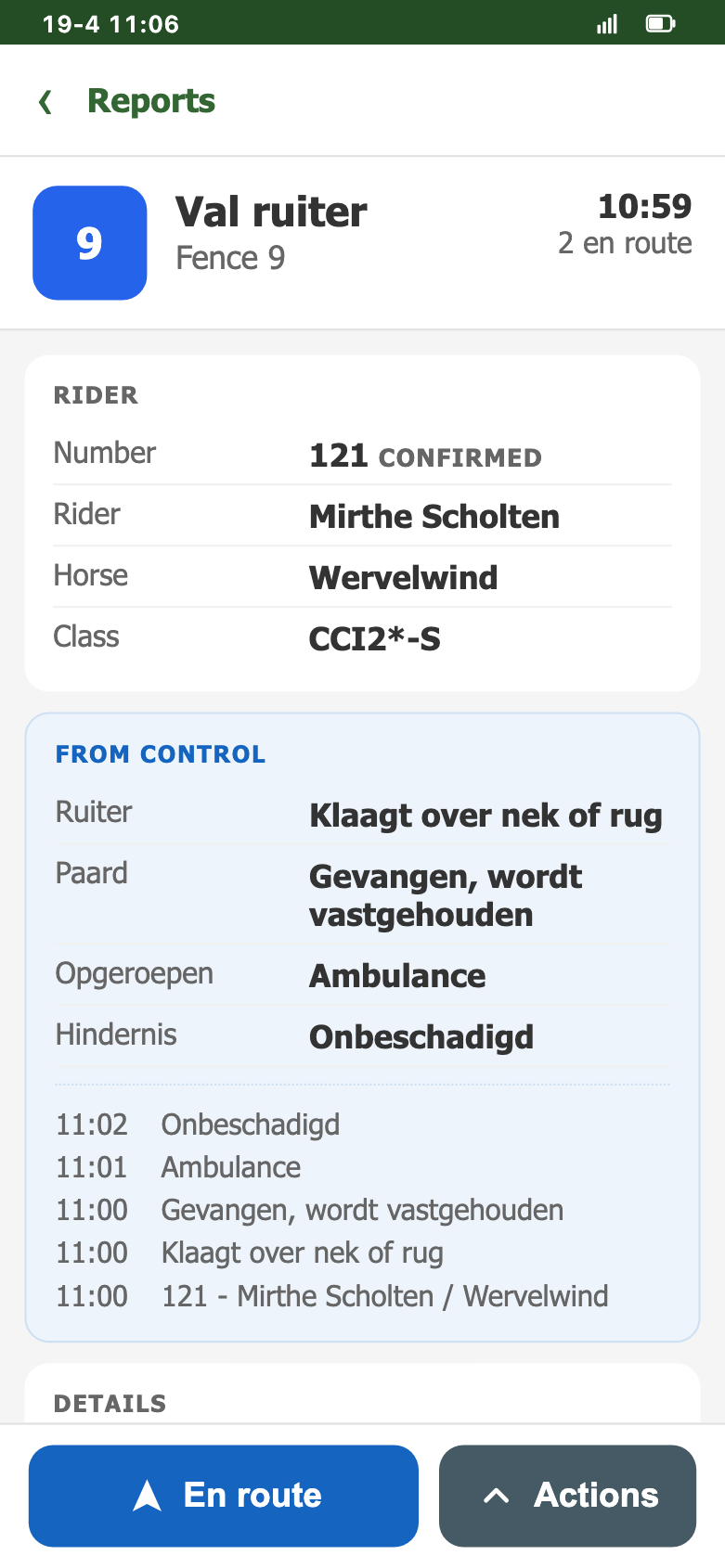
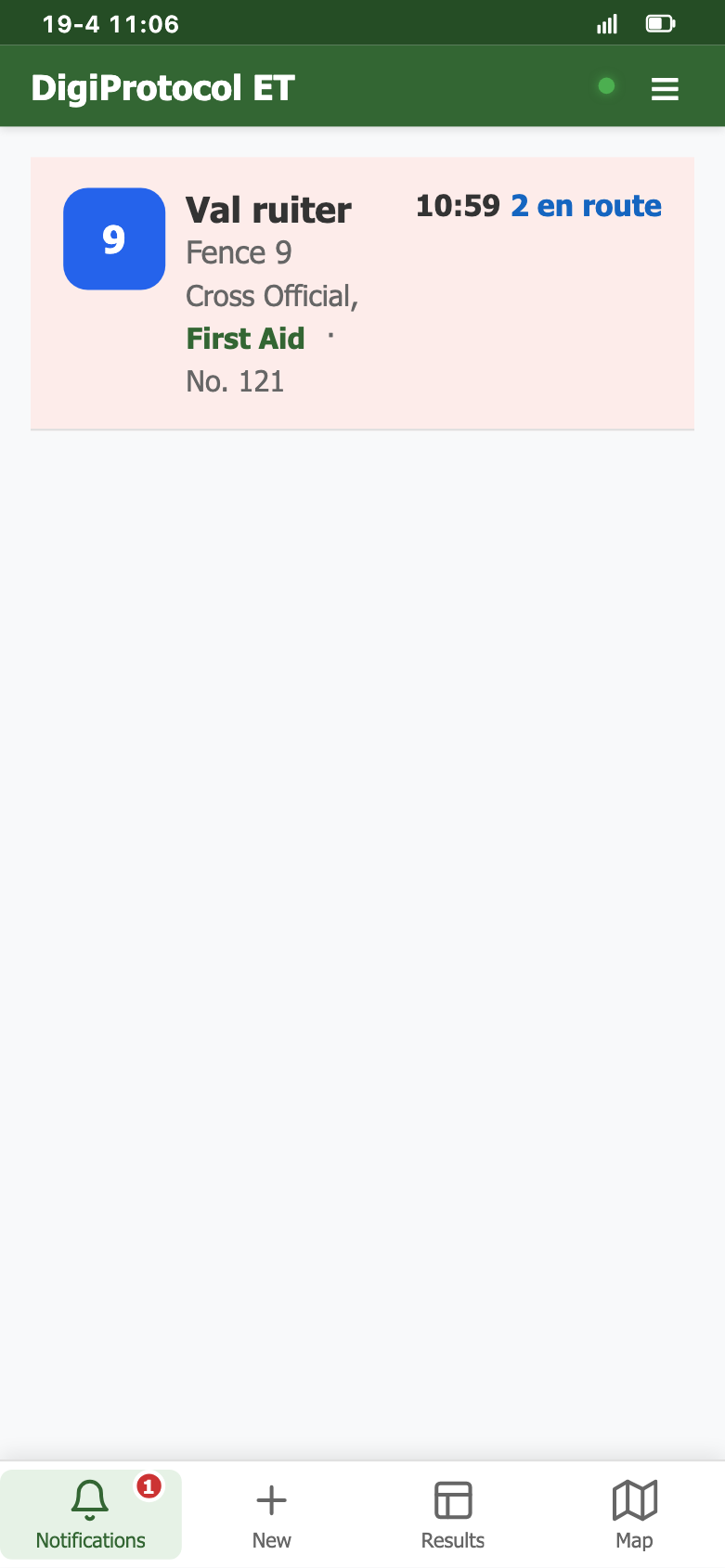
First aid, vets, the construction crew and coordinators get their own app. An alert arrives with an alarm sound, even on the lock screen, with everything they need to go straight away.
- Everything about the incident: fence, rider number, rider, horse and class.
- Updates from the central post on the same screen, with a timeline: how rider and horse are doing, who has been called.
- On the way or on site with one tap. The team and the central post see who is driving and who has arrived.
- A map of the course, the fences and the other responders, so the fastest route is clear.
- Create an alert themselves to ask for extra help, and a radio channel of their own for the emergency team.
The ground jury follows along,
anywhere on site.
Officials log in with their name and a daily code. They see the results with the history of every score, the videos, the fall reports, comments from fence judges and the map.
History per score
Who entered what, and what changed later.
Change requests
Officials can request a change themselves, if the organisation allows it.
Federation portal
Statistics for the KNHS: fall reports, refusals, average times and the hardest fences.
Prefer a real
radio? No problem!
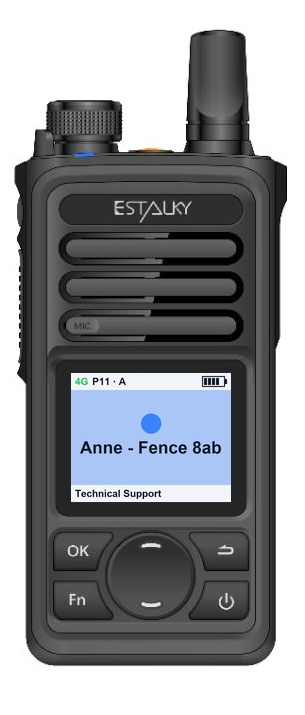
DigiProtocol has its own push-to-talk system with separate channels, so fence judges, responders and the organisation never get in each other's way. It is built into the app — you talk with the push-to-talk key on the side of the device — and works together with separate handheld and base radios we bring along.
- Fixed channels: fence judges, emergency, IT, organisation, terrain crew, show jumping, dressage and ground jury.
- One speaker at a time, with a queue. Messages never overlap and play even with the screen off.
- You see who is talking, with their name and post.
- Missed something? Replay the last message on the device. All traffic is recorded and can be played back afterwards.
Base radios for the central post and announcer
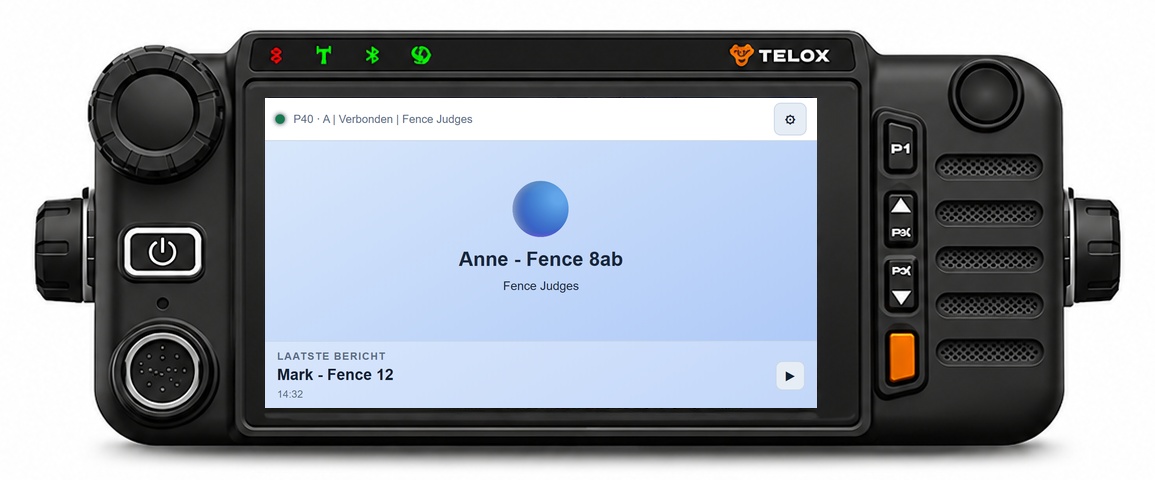
At the central post and with the announcer there is a Telox base radio with a big screen and a loud speaker. You see who is talking and on which channel, and replay the last message with one button.
Works with what
you already use.
DigiProtocol doesn't replace your scoring system: it adds to it. The integrations run as services on our servers, all day long.

Equipe
Start lists and eliminations in, scores and times out, live. Switched on per class.
CrossCountry App
The course with fences and route on the live map, imported in a few seconds.
Excel and CSV
Import start lists with a column mapping, and paste fence names per class.
Timesaver
Fully integrated: the laser timing at the finish comes in to the millisecond.
MyLaps transponders
MyLaps transponder chips linked to riders, with status and last signal.
KNHS and FEI
The official fall reports, filled in digitally and straight to the show office.
Ready before
the first rider starts.
We do most of the preparation. What is left for the organisation: setting up the classes, loading the start list and assigning the people.
We set up the devices
Every device is already set to the right role and radio channels when we hand it out.
Class settings
Colour, fence order, stop lines, optimum time, competition day. Copy to every class of the same colour.
Instruction evening
On request we explain to the volunteers beforehand how the apps work.
And we're not done yet.
Every event brings new ideas, and you will find them in the next version. Curious what DigiProtocol can do for your cross-country?